
README screenshots that update themselves
How to add a screenshot to a GitHub README, why it goes stale, and how to have your tests replace it on every build while the URL in the README stays the same.
Add an image to a README
A README is Markdown, so an image is one line:

The text in square brackets is the alt text. The part in parentheses is a path inside the repository or a full URL. For size, alignment, linked images and dark mode, see Markdown image syntax. This page is about the harder part, which is keeping a screenshot true after the UI changes.
Where README images live today
There are three common places to put the file.
Committed to the repository. Save the PNG in a folder such as docs/ and use a relative path:

The image is versioned with the code and needs no other service. GitHub resolves the path against the branch the reader is viewing.
Uploaded as a GitHub attachment. Drag the image into an issue, pull request or comment box on github.com. GitHub uploads it and puts an anonymized URL in the text box. Copy that Markdown into the README. According to GitHub's docs on attaching files (checked October 2026), images and GIFs can be up to 10 MB, and in a private repository only people with access to it can view the upload.
Hosted somewhere else. Any image URL that the reader's browser can open works, such as your own site, an object storage bucket or an image host.
What goes wrong
All three show the product as it looked on one day. Then the product moves on.
- It goes stale. A renamed button or a new sidebar makes the README wrong. Nothing fails, so nobody notices until a new user does.
- Refreshing it is manual. Someone has to run the app, get it into the right state, take the screenshot at the right size, and open a pull request. It is easy to put off.
- Committed images pile up. Git keeps every version of every PNG in the history, so each refresh makes every future clone a little bigger.
- An attachment is a new URL every time. GitHub's docs describe uploading a file, not replacing one. A new screenshot is a new upload with a new URL, so the README has to be edited too.
Screenshots from your tests
The fix is to let the code that already drives your UI take the screenshot, and to give the README a URL that does not change when the image does. That is what Screenery does:
- A Playwright test saves a screenshot.
- The screenery/push@v1 GitHub Action publishes it from CI.
- The README embeds https://cdn.screenery.dev/{org}/{project}/{asset}@latest.png, which follows your default branch.
Here is one, live. This is Screenery's own console, at a URL that Screenery's CI updates:
The live screenshot did not load. cdn.screenery.dev/jfreal/screenery/projects@latest.png
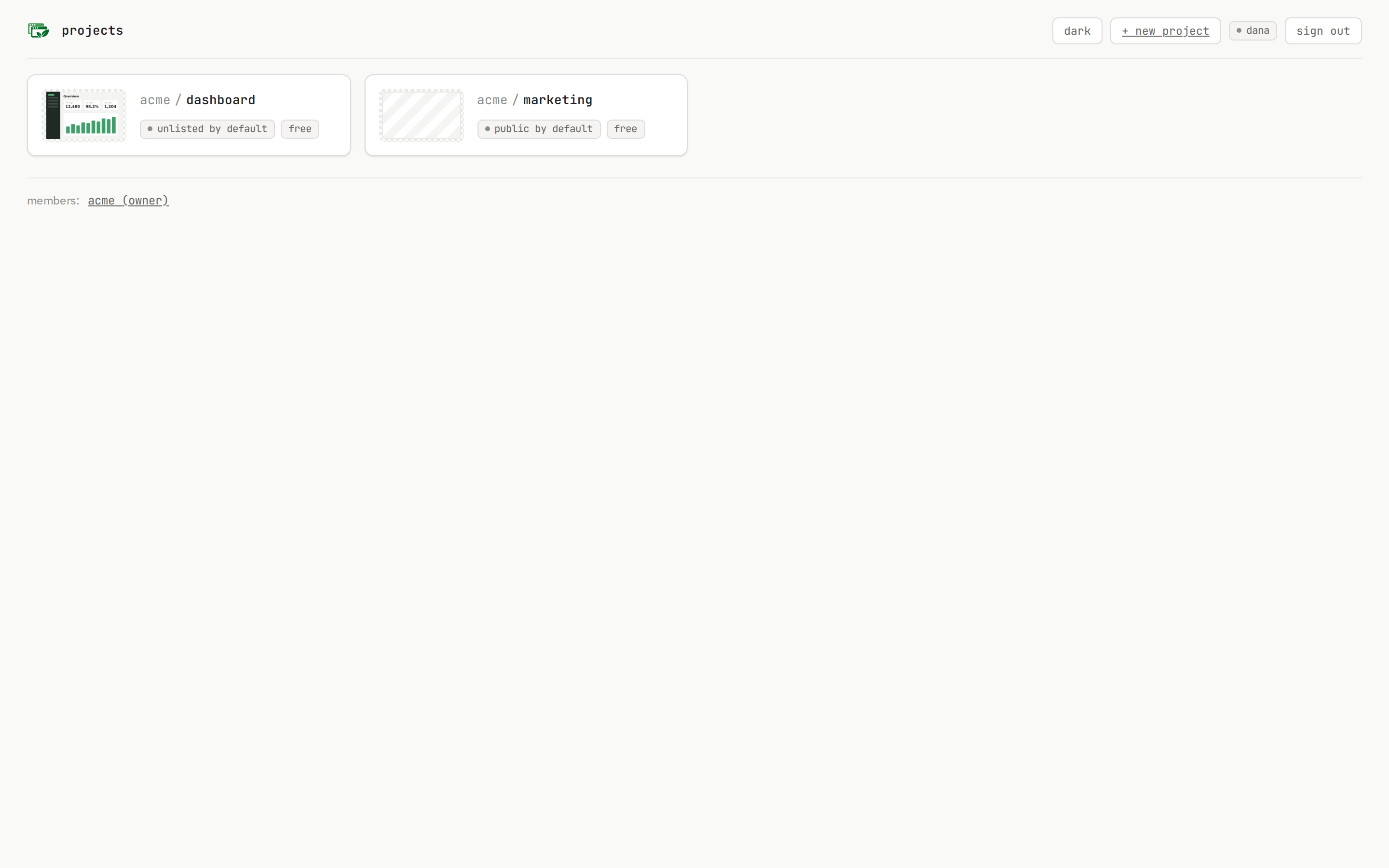
The same setup in your repository takes three steps.
1. Take the screenshot in a test
Write a Playwright test that opens the screen and saves it to a folder used only for screenshots. This example assumes baseURL is set in playwright.config.ts:
// tests/readme.spec.ts
import { test, expect } from '@playwright/test';

test('README: dashboard', async ({ page }) => {
  await page.setViewportSize({ width: 1280, height: 800 });
  await page.goto('/');
  await expect(page.getByRole('heading', { name: 'Dashboard' })).toBeVisible();
  await page.screenshot({ path: 'screenshots/readme/dashboard.png' });
});
The file's path inside the folder becomes the screenshot's name, so screenshots/readme/dashboard.png is published as readme/dashboard. Use lowercase letters, digits, ., _ and -. A capital letter fails the push. Treat the name like a route, because the README links to it. More on naming in Naming your own screenshots.
Wait for the content you want to show before you take the screenshot, as the expect line does. Otherwise the README may show a loading spinner.
2. Push it from CI
Sign in, install the Screenery GitHub App on the repository, and choose a public project. Getting started covers that step. Then add the Action after your tests, in the same job:
name: screenshots
on:
  push:
    branches: [main]
  pull_request:
jobs:
  screenshots:
    runs-on: ubuntu-latest
    permissions:
      id-token: write
      contents: read
      pull-requests: write
    steps:
      - uses: actions/checkout@v4
      # … install dependencies and run your Playwright tests …
      - uses: screenery/push@v1
        with:
          project: acme/dashboard
          path: screenshots
There is no secret to store. id-token: write lets the job prove to Screenery which repository and branch it runs for. pull-requests: write lets it post a preview comment on pull requests. Every input is on the GitHub Action reference. Not on GitHub Actions? Push with npx screenery push and a token, as shown in Without the GitHub App.
3. Paste the URL into the README
The push log prints a ready-to-paste snippet for each screenshot. It looks like this:

That is the last README edit for this screenshot. The extension is the format you saved, so a PNG is .png. To set its size or show a dark version, wrap the URL in <img> or <picture> as described in Image size and Images that update themselves.
What happens next
- The first push creates @latest, even from a pull request, so the URL works as soon as you add Screenery.
- A pull request never moves it. Its screenshots land on @pr-12, named after the pull request, and the preview comment shows them. The README keeps showing the default branch.
- Merging moves it. The push on the default branch points @latest at the new build. The README now shows the merged UI, with no commit to the README.
- GitHub may lag by a few minutes. GitHub shows README images through its Camo image proxy, and GitHub's docs tie a stale image to the image's Cache-Control header. A channel URL sends max-age=300, so caches keep it for five minutes at most.
The full rules, including promoting by hand and which jobs may move @latest, are on How @latest moves.
Good to know
- Only public screenshots paste as plain Markdown. Anyone with the URL can open a public screenshot. Unlisted and private ones need a signed URL or a read token. See Visibility.
- Renaming a screenshot breaks its URL. There are no redirects. On the next default-branch push the old name's @latest answers 404.
- The extension must match the stored format. Screenery does not convert or resize images yet, so a .webp URL for a PNG answers 501. Use <img width> to change the display size.
- A page that must never change can use a version URL, one that ends in @v_…. It names one stored image forever. See Channels and versions.
Compared
| Committed file | GitHub attachment | Screenery URL | |
|---|---|---|---|
| Setup | None | None | A test, a CI step and a project |
| After a UI change | Retake and commit | Retake, upload, edit the README | Nothing; the next build replaces it |
| Repository size | Grows with each version | Unchanged | Unchanged |
| Works offline and in clones | Yes | No | No |
A committed file is still the right choice for images that rarely change, such as a logo or an architecture diagram. Screenery is for screenshots of a UI that keeps moving.
Docs sites have the same problem. See How to keep documentation screenshots up to date and, for Mintlify, Self-updating screenshots in Mintlify docs. To capture screens behind a login with stable data, see Screenshot automation for docs and READMEs.
FAQ
How do I add an image to a GitHub README?
Commit the image to the repository and reference it with a relative path, such as . You can also paste any image URL that anyone can open, including a GitHub attachment URL or a Screenery URL.
Where should I store README images?
For images that rarely change, such as a logo or a diagram, commit them to the repository in a folder such as docs/ or .github/. For screenshots of a UI that changes, generate them in CI and serve them from a stable URL, so the README does not need a commit every time the UI changes.
Why is my README screenshot not updating on GitHub?
GitHub shows external README images through its Camo proxy, and GitHub's docs tie a stale image to the image server's Cache-Control header. A Screenery channel URL allows caches to keep it for at most five minutes. If the image is a committed file, it changes only when someone commits a new one.
Does this work in a private repository?
Yes. A public Screenery screenshot is a plain URL that works in any README, public or private. A private Screenery screenshot needs a read token in its URL. An admin can create an embed token for this, and anyone who can read the README can read that token.
Do I need Playwright?
No. Screenery publishes any PNG, JPEG, WebP, AVIF, GIF, WebM or MP4 file in the folder you push. Playwright is the most direct way to take the screenshots in CI, and this guide uses it.